How to invite team members to your Flint account
Last updated: April 20, 2026
You can invite team members to collaborate on your Flint account in two ways: by inviting them yourself through the app, or by requesting that our support team send the invitation.
Inviting members yourself
The easiest way to add team members is to invite them directly through your Flint account:
Go to Organization Settings
Click the "Invite Member" button
Enter your team member's email address
Send the invitation
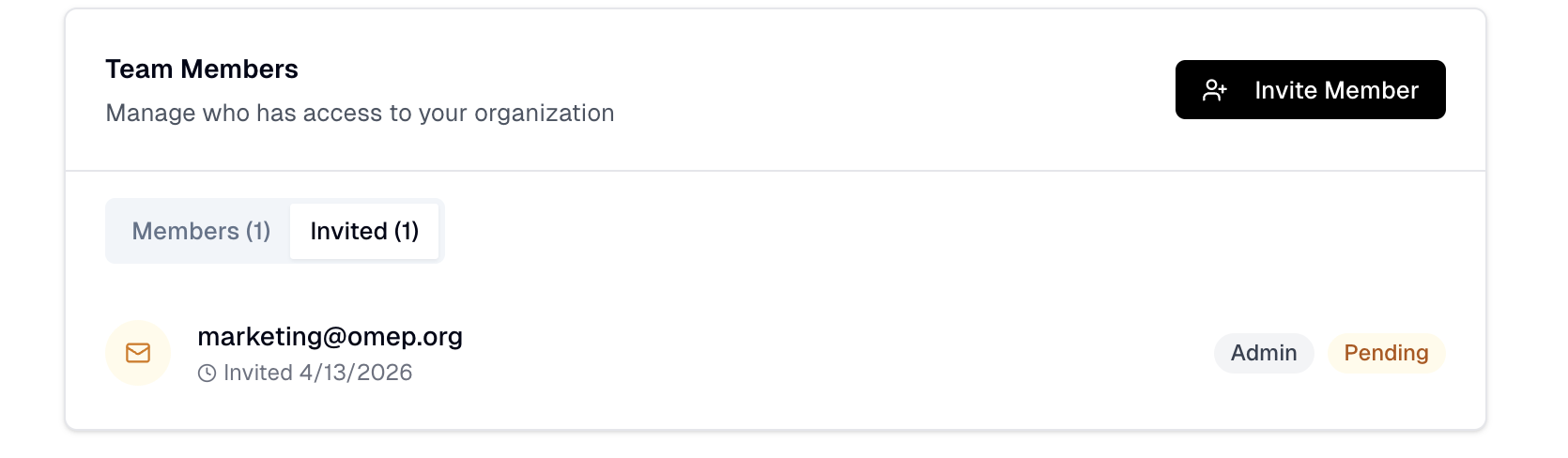
The invited user will receive an email with a link to accept the invitation and join your account.
If you need help with invitations
If you're unable to invite members yourself or encounter any issues, you can contact our support team. Simply provide:
The email address of the person you want to invite
Any specific organizations or projects they should have access to
Our team will send the invitation on your behalf.
Troubleshooting invitation issues
If your team member doesn't receive the invitation email:
Ask them to check their spam/junk folder
Verify the email address is correct
Contact support to resend the invitation
Note that pending invitations will show as "Pending" in your team members list until the recipient accepts the invitation.