Troubleshooting "Route not found" and 404 errors on published pages
Last updated: April 20, 2026
If you're seeing a "Route not found" error or 404 page when trying to access your published Flint page, there are several common causes and solutions to try.
Most Common Solutions
1. Check if Your Page is Hidden
Pages marked as "Hidden" will return 404 errors even when published:
In the editor, go to your page settings
Look for a "Hidden" badge in the left sidebar of the editor and make sure it's turned off
Republish your site after making this change
2. Check if Your Custom Domain is Setup Correctly
If you haven't setup a custom domain, the Flint pages will not be linked to your original domain. Refer to this guide for further reference.
Publishing vs Preview URLs
Make sure you're using the correct URL:
Preview URLs (from the Share button) are temporary and may not always work - these typically contain long strings like "git-staging-flintai.vercel.app"
Published URLs use your custom domain or the shorter Flint domain format
Publishing to Production
If your page works in staging but shows 404 in production:
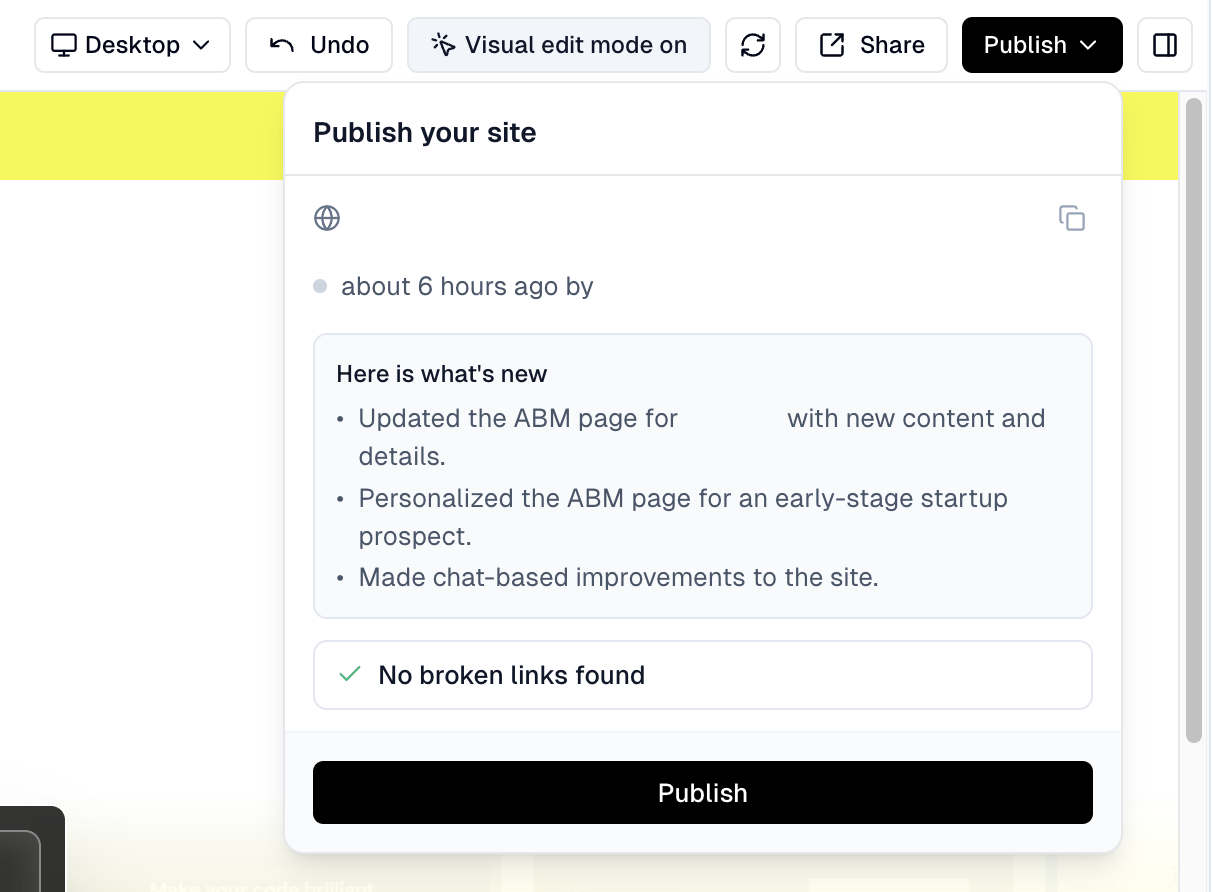
Click the Publish button in the top right of the editor
Wait for the deployment to complete
Access the production URL to see the published page
API-Created Pages
If you created a page via API and don't see it in your Pages list:
Reload the editor page to refresh the page list
Check the publish modal to see if the page appears there
The page should be accessible via the preview URL provided in the API response
When to Contact Support
If none of these solutions work, or if you're experiencing persistent issues with specific pages, please contact support with:
The specific page URL or slug that's not working
Whether the error appears in the editor or on the published site
Any recent changes you made to the page